
4-4-5 Calendar in Power BI: DAX Guide for 53-Week Years
Build a 4-4-5 calendar in Power BI, get YTD and prior-year comparisons right, and decide how to handle a 53-week year. A practical DAX guide.
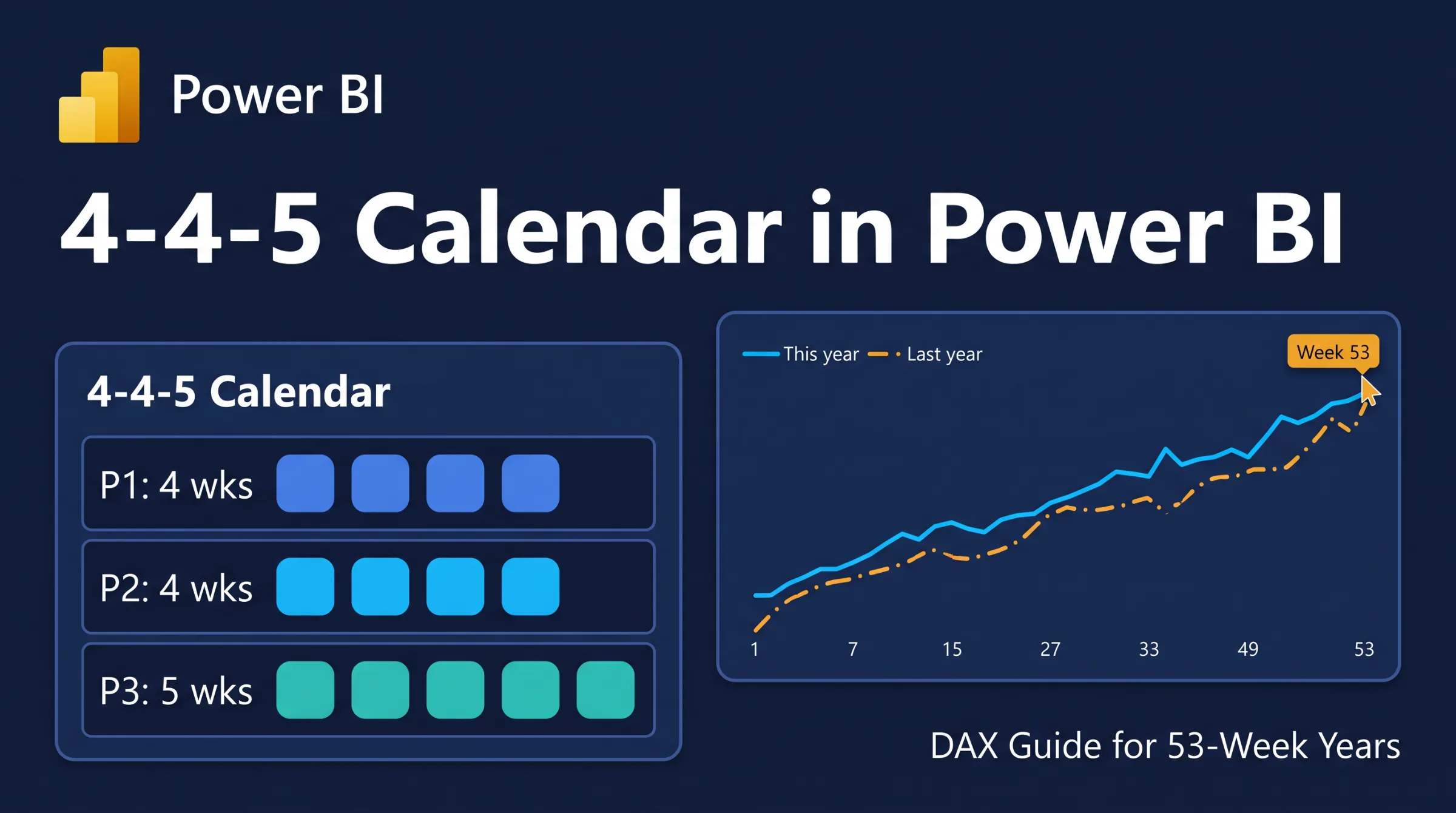
If your finance team reports on a week-based calendar, a 4-4-5 calendar in Power BI needs more than a standard date table. Year-to-date totals, prior-year comparisons and the occasional 53-week year all behave differently when periods are built from whole weeks instead of natural months.
This guide walks through a working approach: build the calendar table, choose between native and classic DAX, write the core measures, and decide what to do in week 53. Examples use a small illustrative table so you can follow the logic.
Quick answer
A 4-4-5 calendar needs a day-level calendar table with fiscal year, quarter, period and week columns, plus sequential index columns. Source it from your finance system or warehouse.
Pick one of two approaches: Power BI’s calendar-based time intelligence (check its current status first), or classic custom DAX built on helper columns.
Week 53 has no prior-year twin. Ask finance how it should be compared, then build that rule into your measures. Don’t guess.
A 4-4-5 calendar in Power BI: what it is and why standard time intelligence fails
A 4-4-5 calendar is a 52-week fiscal calendar. Each quarter has 13 weeks, split into periods of 4, 4 and 5 weeks. A week never splits across a period, quarter or year, so period boundaries rarely line up with calendar months.
Classic DAX time intelligence functions such as TOTALYTD and SAMEPERIODLASTYEAR assume natural months and quarters. SQLBI has long documented that week-based calendars need custom DAX, built mainly from CALCULATE, FILTER and VALUES, usually with helper columns like a sequential day or week number.
Microsoft has since introduced calendar-based time intelligence (also called enhanced time intelligence), which lets you define custom calendars in the semantic model (formerly called a dataset). We cover it in Step 2.
The 53-week problem: what to ask finance first
52 weeks is 364 days, which is shorter than a calendar year. Over time a 52-week calendar drifts, so companies occasionally add a 53rd week to realign it.
When that happens, and where the extra week goes, is defined by your company. There is no universal rule you can safely hard-code. Before you build anything, get written answers to these questions from finance:
On what day does a fiscal week start, and which date starts fiscal year one in your data?
Which years have 53 weeks, and how does the calendar rule decide that?
Which period or quarter absorbs the extra week?
How should week 53 be compared with the prior year in reports?
Is there a published calendar you can reconcile against?
Treat the answers as the specification for your calendar table.
Step 1: Build or source the calendar table
You need one row per day. Typical columns:
Date
FiscalYear
FiscalQuarter
FiscalPeriod (1 to 12)
FiscalWeekOfYear (1 to 52, or 53)
WeekOfPeriod
DayIndex: a sequential day number across the whole table
WeekIndex: a sequential week number across the whole table
The index columns do the heavy lifting. Because they never reset at year end, “the week before” and “the last four weeks” work across a year boundary without special cases.
Here is a small illustrative sample, shown at week level. Illustrative only; your finance team defines your real calendar.
WeekIndexFiscalYearFiscalWeekOfYearFiscalPeriod5120265112522026521253202653125420271155202721
Three recommendations:
Source the table from your finance system or data warehouse, so there is one source of truth. If you generate it in Power Query or DAX, you are re-implementing finance’s rules, and the two will eventually disagree.
Mark it as the date table in the semantic model, and make sure the Date column is unique and complete.
Turn off auto date/time. Hidden auto-generated date tables follow the Gregorian calendar and invite mistakes.
If you want a hand preparing a clean date dimension, our team available for help in Power BI reporting.
Step 2: Choose your approach
Option A: Calendar-based time intelligence
This feature lets you define a calendar inside the semantic model by mapping columns of your date table to time units such as year, quarter, month, week and date, plus partial units like week of year. Time intelligence functions then accept a calendar instead of a date column. Microsoft has positioned it for fiscal and retail-style calendars such as 4-4-5, and it adds week-level functions such as TOTALWTD.
Check these points in Microsoft’s current documentation before you commit:
Status. It was introduced as a preview in the September 2025 Power BI Desktop release. Confirm whether it is still a preview feature or generally available.
Where it works. Documentation at the time of writing said calendars can’t be authored in the Power BI service and aren’t supported with live connected or composite models. Check current limits, including DirectQuery and Direct Lake.
Shared tables. If one date table holds several calendars, the calendar-based functions remove filters from all of them, even when only one calendar is referenced. SQLBI documents this behavior. Keep one fiscal calendar per table where you can.
Week 53. The week-of-year unit can reach 53, but how your 53rd week is mapped depends on how you define the calendar. Test it.
Option B: Classic custom DAX with helper columns
This approach works in any model and doesn’t depend on a preview feature. The logic is simple: instead of asking DAX to find “the same months last year”, you filter the calendar table yourself, using fiscal year, week of year and the index columns.
Which should you choose?
SituationBetter fitNew model, complex or multiple calendars, comfortable with newer featuresOption AProduction model that must avoid preview featuresOption BLive connected or composite modelsOption B (check Option A’s current limits)Existing reports already built on custom DAXOption B, until there’s a reason to migrateOne fiscal calendar, simple needsEither; B is easier to reason about
SQLBI’s own advice is not to rush to migrate working models.
Step 3: The core measures
Below, [Sales Amount] is an existing base measure and 'Calendar' is the date table from Step 1.
Verify before publishing: all DAX in this article should be tested against your own model.
Year-to-date
Take the fiscal year in the current filter context, then include every day in that year up to the last day in context.
Sales YTD =
VAR CurrentYear = MAX ( 'Calendar'[FiscalYear] )
VAR CurrentDay = MAX ( 'Calendar'[DayIndex] )
RETURN
CALCULATE (
[Sales Amount],
FILTER (
ALL ( 'Calendar' ),
'Calendar'[FiscalYear] = CurrentYear
&& 'Calendar'[DayIndex] <= CurrentDay
)
)
Because it uses the fiscal year column, it resets in the right week, not on January 1.
With calendar-based time intelligence on, the equivalent is a single call. The second argument is the calendar name, for example TOTALYTD ( [Sales Amount], 'Fiscal 445' ). (Verify before publishing: calendar name and syntax.)
Same period last year
Match the same fiscal week numbers in the prior fiscal year.
Sales PY Same Weeks =
VAR CurrentYear = MAX ( 'Calendar'[FiscalYear] )
VAR SelectedWeeks = VALUES ( 'Calendar'[FiscalWeekOfYear] )
RETURN
CALCULATE (
[Sales Amount],
FILTER (
ALL ( 'Calendar' ),
'Calendar'[FiscalYear] = CurrentYear - 1
&& 'Calendar'[FiscalWeekOfYear] IN SelectedWeeks
)
)
Don’t use SAMEPERIODLASTYEAR on a date column here. It shifts by calendar year, which breaks week alignment. Note what happens in week 53: no matching week exists last year, so the measure returns blank. Step 4 covers whether that is what you want.
Prior week and rolling comparison
The week index makes these straightforward, and they cross year boundaries correctly.
Sales Prior Week =
VAR CurrentWeek = MAX ( 'Calendar'[WeekIndex] )
RETURN
CALCULATE (
[Sales Amount],
REMOVEFILTERS ( 'Calendar' ),
'Calendar'[WeekIndex] = CurrentWeek - 1
)
Sales Rolling 4 Weeks =
VAR CurrentWeek = MAX ( 'Calendar'[WeekIndex] )
RETURN
CALCULATE (
[Sales Amount],
REMOVEFILTERS ( 'Calendar' ),
'Calendar'[WeekIndex] > CurrentWeek - 4,
'Calendar'[WeekIndex] <= CurrentWeek
)
These measures work best with weeks on the visual axis. If a report filters to a single day, decide whether you want that day’s week or the day itself.
Step 4: Handle the 53rd week in year-over-year comparisons
In a 53-week year, week 53 has no prior-year equivalent. The same problem hits year-to-date: the current year has 53 weeks of data, the prior year has 52. Without a rule, the numbers look wrong.
These are the usual options. Finance has to choose one.
Show blank. Week 53 gets no prior-year figure and no variance. Simple and honest, but year-to-date totals still compare 53 weeks with 52.
Compare to a defined week. Finance names the week that week 53 is compared with (for example, the last week of the prior year). Implement it as an explicit rule in the measure, and label it.
Flag it. Add an
IsWeek53column or measure, so visuals can show a marker and totals can be read with context.Show both bases. Offer a year-to-date view that excludes week 53, next to the full figure.
Whichever you choose, write it in the report notes. A variance that silently compares unequal periods will cause arguments in review meetings.
Step 5: Validate
Reconcile before you publish.
Compare against finance’s published calendar. Week start dates, period boundaries and the count of weeks per year should match exactly.
Reconcile known totals. Pick closed periods and quarters whose sales finance has signed off, and check them against your measures.
Test the boundaries. Check the last week of a year, the 53rd week of a 53-week year, and the first week of the next year. Confirm that year-to-date resets in the right week.
Check the prior-year logic. Spot-check three or four weeks by hand, including week 53.
Common mistakes
Leaving auto date/time on. Hidden Gregorian tables creep into your model.
Not marking the date table. Time intelligence may not behave as expected.
Year-to-date resetting in the wrong week. This usually means a calendar-year column was used where fiscal year was needed.
Mixing calendars in one table. Native functions clear filters across every calendar in the table, which can surprise you.
Comparing mismatched weeks. Shifting by 365 days or by calendar year pairs a week with the wrong one.
Hard-coding the 53-week rule. Take it from finance, and keep it in the calendar table.
FAQ
Does Power BI support 4-4-5 natively?
Calendar-based time intelligence is designed to cover retail calendars such as 4-4-5. Check Microsoft’s documentation for its current status and limits. Classic custom DAX works in any model.
What is a 53-week year?
A fiscal year with an extra week, used by some companies to keep a 52-week calendar aligned with the calendar year. Your finance team’s calendar definition says when it happens and where the extra week sits.
What is the difference between 4-4-5 and 4-5-4?
Both have 13-week quarters. They differ in which period within the quarter has five weeks: the third period in 4-4-5, the second in 4-5-4. Use whichever pattern finance reports on.
Can I still use TOTALYTD?
Yes, in two ways. With a date column, it assumes natural months, so it won’t match a 4-4-5 year-end. With calendar-based time intelligence, it accepts a calendar. Otherwise, use custom DAX as shown above.
Want help building your fiscal calendar in Power BI?
Cee Apps is a Power BI services partner, and we enjoy turning unusual business rules, like a company’s own calendar, into reliable report logic.
Here is how we can help:
Business intelligence reporting. Power BI report and dashboard design, including the time-based measures that make week-based comparisons trustworthy.
ETL and data warehousing. Preparing and organising the data that feeds Power BI, for example a clean date dimension that matches your finance calendar.
Scripting and automation. Zapier, Zoho Flow, Make and Google Apps Script to keep related workflows moving.
Power BI · 4-4-5 Calendar · 53-Week Year · DAX · Fiscal Calendar · Power BI · Retail Analytics · Semantic Models · Time Intelligence
Related articles
Power BI Q&A Retirement: Migration Guide to Copilot
Power BI Q&A retires by the end of December 2026. Find every Q&A visual, pick a Copilot replacement, prep your model and migrate with a checklist.
How to Trigger Power BI Refresh with Zapier or Make
Learn how to trigger Power BI refresh from Zapier or Make, or call the refresh API directly, plus the limits and failure points to plan for.
Comments
No comments yet.